Author: Pan

  • How I Compressed a PDF on My Mac Without Installing Anything

    How I Compressed a PDF on My Mac Without Installing Anything

    I recently needed to email a batch of PDF files. One of them was 151.5 MB. I wanted it below 25 MB, and I wanted to keep it as one PDF rather than split it into separate pages.

    My first attempt was the obvious one: open it in Preview and use Reduce File Size. That got it down to somewhere in the 40 MB range. Better, but still too large. I tried the same thing again, and the file actually got bigger.

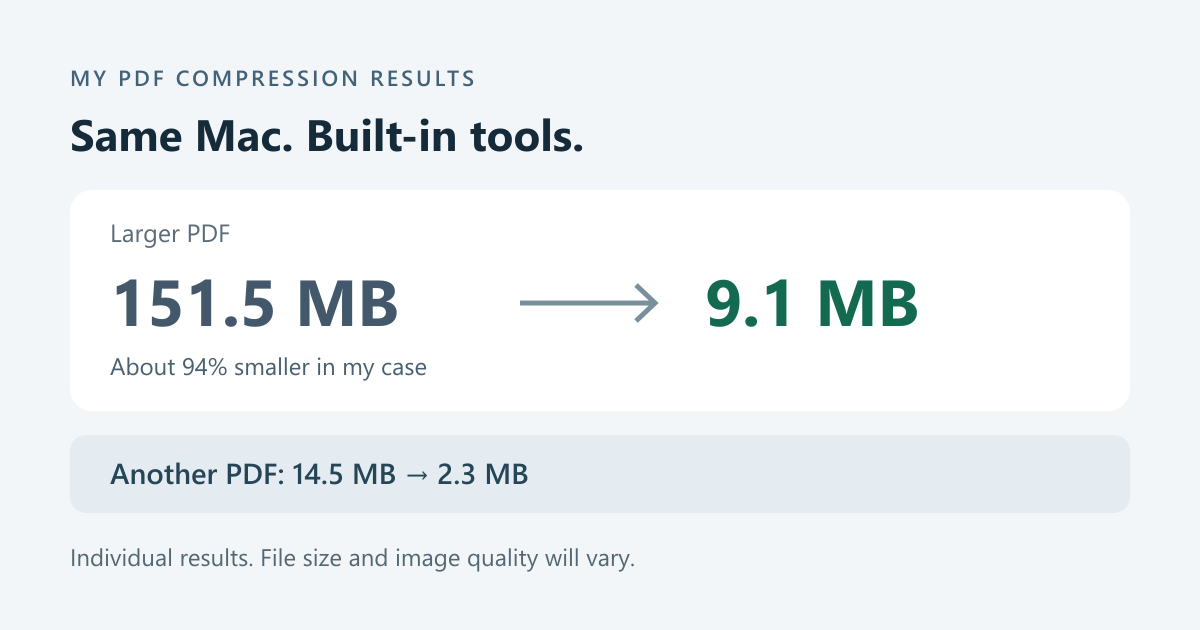
    The tool that helped was already on my Mac: ColorSync Utility. It lets you make a custom version of the PDF compression filter. After working through that, the final file I saw was 9.1 MB, about 94% smaller than the original. Another PDF went from 14.5 MB to 2.3 MB.

    Two personal PDF compression results: 151.5 MB to 9.1 MB, about 94 percent smaller; and 14.5 MB to 2.3 MB. Results vary by document.
    My actual file sizes. These are individual results, not a promised compression ratio.

    Those are the sizes of my files, not a result I can promise for every PDF. I also do not have a verified record of every setting used for the final 9.1 MB version. The settings below are a starting point to try, not a recipe that guarantees the same result.

    The two built-in tools you need

    Both Preview and ColorSync Utility come with macOS. There is nothing to install or pay for, and this workflow does not require uploading the PDF to an online compression service.

    Preview handles the export. ColorSync Utility lets you adjust the filter used for that export. The detail I initially missed was that the built-in filter is locked: you need to copy it before you can change it.

    Six steps: open ColorSync Utility, find Reduce File Size in Filters, duplicate the locked filter, adjust sampling and JPEG compression, export the original in Preview, and inspect every page.
    The workflow at a glance. This is a guide diagram, not a macOS screenshot.

    1. Open ColorSync Utility

    Press Command + Space, type ColorSync Utility, and open the app. You can also find it in Applications → Utilities.

    2. Find the Reduce File Size filter

    Click Filters in the toolbar, then find Reduce File Size. Expand the filter using the arrow beside its name. Inside it, look for Image Sampling and Image Compression.

    The labels and controls can look a little different depending on your macOS version and language. The important thing is to find the filter and its two image settings.

    3. If everything is greyed out, duplicate the filter

    This was the part that stopped me. I expanded Image Sampling, but all the settings were grey and I could not edit them.

    The original system filter is locked. Look on the right side of the filter row for the Duplicate button: two overlapping document outlines, just to the left of the padlock. Apple confirms this in its ColorSync Utility guide.

    Apple ColorSync Duplicate button, shown as two overlapping document outlines.Duplicate
    Click this first
    Apple ColorSync closed padlock icon indicating a locked filter.Locked
    Original cannot be edited
    Button images: Apple ColorSync Utility User Guide. This is an icon guide, not a full app screenshot.
    1. Click the Duplicate button beside Reduce File Size.
    2. Select the new copy. Depending on the version, its name may start as Reduce File Size Copy.
    3. Rename it to something recognizable, such as My PDF Compression.
    4. Expand the copy and edit its settings. Leave the original system filter alone.

    Some older versions put Duplicate Filter inside the menu on the right of the filter name. The idea is the same: edit a copy, not the locked original.

    4. Adjust image sampling and compression

    For a first attempt, these are reasonable settings to experiment with:

    SettingStarting point to try
    Image Sampling → QualityHigh
    Image Sampling → Set Resolution144 Pixels/Inch
    Image Compression → Mode / CompressionJPEG
    Image Compression → QualityStart toward High; try Medium if needed
    Trial settings only. These are not the verified complete settings for my 9.1 MB file.

    If there are checkboxes beside the settings, enable the resolution setting you intend to use. Also check any inherited scale or pixel-size limits: those can affect the result too. Adjust them for your document rather than assuming the resolution field is the only control that matters.

    Older ColorSync Utility interface showing a custom filter with Image Sampling and Image Compression sections. The screenshot uses 150 dpi and Medium sampling quality, not the suggested starting settings in this article.
    An older ColorSync interface, shown only to help identify the two settings sections. The screenshot uses 150 dpi and Medium sampling quality; it is not my final configuration. Image: Daniel Beck, Super User, June 7, 2011, CC BY-SA 3.0, unmodified.

    144 dpi will not suit every PDF. If the file has small text, fine lines, stamps, or QR codes, try a higher resolution if needed. JPEG compression can also introduce visible artifacts. The goal is a smaller file that is still readable, not the smallest possible number.

    5. Export from Preview using your new filter

    1. Open the original PDF in Preview.
    2. Choose File → Export. Use Export, rather than a different PDF-saving command.
    3. Make sure the format is PDF.
    4. Open the Quartz Filter menu and choose My PDF Compression, or whatever you named the filter.
    5. Save under a new filename, such as document-compressed.pdf. Keep the original.
    6. Check the new file size in Finder.

    Apple documents the File → Export → Quartz Filter route in Preview. Your custom filter gives you a way to adjust the image settings instead of repeatedly using the default preset.

    If it is still too large, adjust the JPEG quality or sampling resolution and export again from the original. Repeatedly compressing an already compressed copy can make image quality worse without reliably making the file smaller.

    What if the new filter does not appear in Preview?

    Try closing and reopening Preview after creating the filter. If it still does not appear, you can apply the filter in ColorSync Utility itself: make a separate copy of the PDF first, open that copy with File → Open, select your filter in the menu at the bottom of the document window, inspect the preview, then click Apply. Apple describes this alternative workflow here.

    6. Open the result and check every page

    Before sending the file, open the compressed version and go through it page by page. Check that:

    • Text and small numbers are still readable when you zoom in.
    • Images, fine details, and any QR codes remain clear enough for their intended use.
    • All pages are present and in the right order.
    • The file opens normally and still contains everything you need.

    A smaller file is not useful if the person receiving it cannot read it. There can be a trade-off between file size and image quality, and there is no fixed setting that avoids that trade-off for every document.

    Why did Preview make my PDF bigger?

    I cannot identify the exact cause for my file. Rewriting a PDF can change image encoding and other internal data, and a file may already contain compressed images. A command called Reduce File Size is not a promise that each new export will be smaller.

    My practical takeaway is to compare the output with the original, keep whichever version works better, and try a custom filter if the default one is not helping. Repeating the same export over and over did not solve it for me.

    Why I kept the compression local

    I did not need an online PDF compressor for this. Preview and ColorSync Utility process the document on the Mac, so the compression step does not require sending it to a third-party website. For my own files, that is a useful reason to try the built-in tools first.

    Under 25 MB, but the email still says it is too large?

    There was one more surprise. Five PDFs showed a combined size of about 23 MB in Finder, but the mail client reported attachments of more than 31 MB.

    One important explanation is email encoding. Binary attachments are commonly Base64-encoded for transport, which adds roughly one third to their size. Microsoft explains the approximately 33% increase and its effect on email size limits.

    For a rough calculation, 23 MB × 4 ÷ 3 ≈ 30.7 MB, before line wrapping, the message body, and other email overhead. That is consistent with the larger figure I saw, although I did not inspect the raw message to measure each part.

    So a PDF below 25 MB does not necessarily make the whole email smaller than 25 MB. Providers can also define and enforce their limits differently. Go by the actual sending and receiving limits; if a batch is too large, sending the PDFs across multiple emails may be better than sacrificing more clarity. Each PDF can still stay in one piece.

    What worked for me

    The useful discovery was not a magic compression number. It was that macOS already had a tool for editing the filter, and that the greyed-out settings became editable once I made a copy.

    For my large PDF, the final result was 9.1 MB instead of 151.5 MB. I got to keep it as a single file, did not install anything, and did not need an online compression site. If Preview is making your PDF bigger, ColorSync Utility is worth trying.

    References and image credits

  • Shopping Through the Wealthsimple Rewards Store: My Experience

    Update (October 15, 2026): The Wealthsimple Rewards Store now charges sales tax, at least here in Ontario. My earlier experience of having no extra tax added no longer applies. I no longer consider it a tax-free shopping perk, and I have updated the description below.

    If this is useful and you decide to try it, my referral link is https://www.wealthsimple.com/invite/QQSF5Q. You can also use the code QQSF5Q.

    I have been using the Wealthsimple credit card for almost half a year now. For a while, my setup was a Scotiabank black card plus the red Rogers Bank card, but recently most of my daily spending has moved to Wealthsimple.

    The cash back is not necessarily the absolute highest if you optimize every category one by one. But the part I like is that, on my card, eligible purchases earn a flat 2% back. No categories to remember, no mental spreadsheet at checkout, and fewer tiny decisions every time I pay for something.

    Wealthsimple rewards store showing Apple Watch, coffee maker, luggage, MacBook, and iPhone options
    The rewards storefront inside Wealthsimple.
    September 2026 Wealthsimple rewards checkout showing cash back applied to an AirTag purchase with zero balance due
    My AirTag checkout from September 2026. Sales tax is now charged in Ontario.

    Wealthsimple has a rewards storefront where you can redeem cash back toward actual products. I have seen things like iPhones, Apple Watches, AirTags, MacBooks, and other gadgets there. When I first wrote this post in September 2026, the checkout I used did not add a separate sales-tax line. That has since changed: I now see sales tax charged at checkout in Ontario, so the tax-free shopping perk I originally described no longer applies to my purchases here.

    Another nice detail is that you do not necessarily need enough cash back to cover the entire purchase. Wealthsimple lets you use cash back to cover at least 50% of the total, then pay the remaining balance. That makes the store feel a lot more practical than a typical points catalogue where you either have enough points or you do not.

    For me, the more practical benefit is actually the bookkeeping. Once spending, investing, and cash back all live in Wealthsimple, it becomes easier to look at my own cash flow, spending patterns, and investment behaviour without piecing things together across a bunch of apps.

    There is one important fee caveat. The card has a $20/month fee unless you qualify for a waiver. As of September 2026, Wealthsimple says the fee can be waived if you have at least $100,000 in individual assets/net deposits with them, or if you set up a qualifying direct deposit of at least $4,000/month into a Wealthsimple chequing account. Terms can change, so check the current details in the app or on Wealthsimple’s official credit card page before applying.


    Referral

    If this is useful and you decide to try it, my referral link is https://www.wealthsimple.com/invite/QQSF5Q. You can also use the code QQSF5Q.

    In my app, the referral offer says that if you use my referral and apply for the credit card, both of us may be eligible for 5% cash back for one month. Eligibility and promotional terms can change, so please double-check the offer before applying.

    Referral disclosure: I may receive a benefit if you use the code. This is just my personal setup and experience, not financial advice.

  • Borrowing a captioning device at a Canadian movie theatre

    Borrowing a captioning device at a Canadian movie theatre

    Movies in Canadian theatres usually do not have subtitles on the screen. This is a cultural difference that I have noticed for a long time.

    I can understand why. When I watch movies in my first language, if subtitles are there, I almost always read them, even when I do not need them. Sometimes it becomes a distraction.

    But there are also times when I watch a movie in English and I can not fully follow everything. Last Saturday, I went to watch The Odyssey, and I borrowed a captioning device from the theatre. It really improved my understanding of the movie. I think if I did not have the device, I might have fallen asleep halfway through.

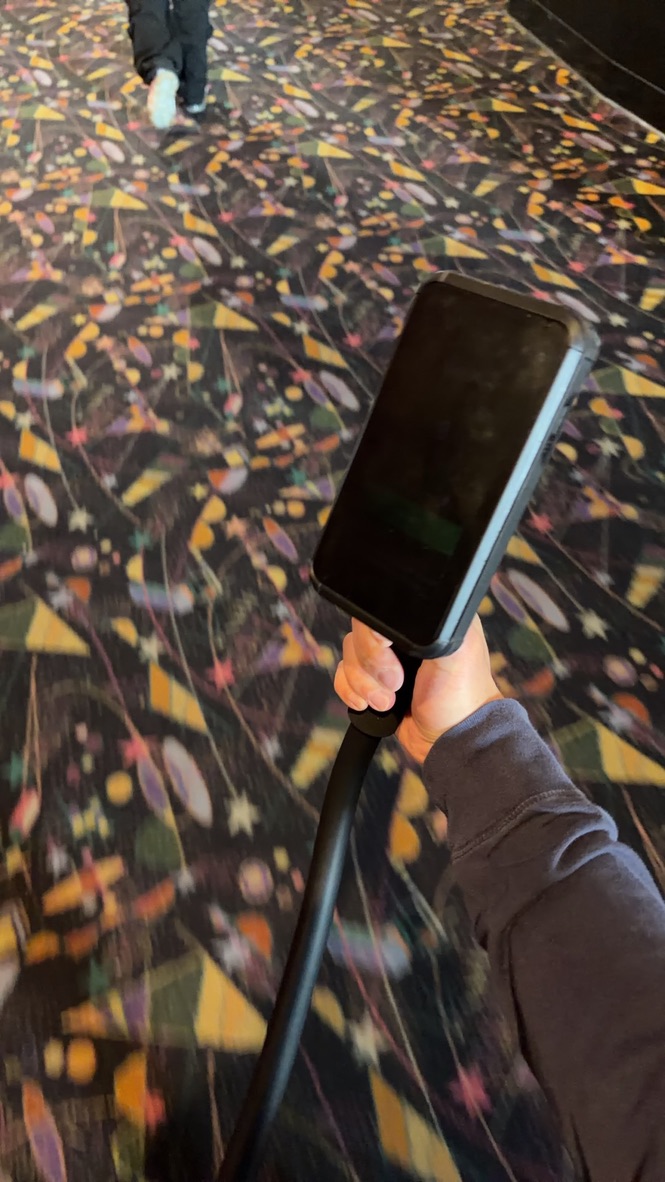
    Because there were many people that day, I did not want to affect the people sitting next to me by taking photos during the movie. So I only took a photo outside the auditorium. The device was quite heavy, heavier than it looks.

    This was my third time borrowing a captioning device. The first time was when I watched Barbie, and I still have a photo from that time.

    A movie theatre captioning device displaying captions during Barbie
    The first time I borrowed a captioning device was when I watched Barbie.

    I have two suggestions for this kind of device. I feel that, at least from the technical perspective, they should not be very hard to try.

    1. Add multilingual support. This could help more non-English speakers watch movies in theatres, without forcing subtitles onto the main screen for everyone.
    2. Make the device lighter. The current device already feels heavy to me, so I imagine it may not be very friendly to kids or older people. Maybe theatres could allow phones to act as captioning devices, and only provide a mount, something like a selfie stick, so the phone can be attached to it. I know theatres may worry about people using phones during movies, but maybe a dedicated app or locked mode could solve part of that problem.

    Overall, I am glad that this option exists. It is not something I need every time, but for some movies, it can really change the experience.

  • My misuse of Apple Care+ for my iPhone

    iPhone 15 pro is the first apple device that I subscribe Apple Care+ for, having thought that I could get a free battery replacement after two years (September 2025).

    That’s my only goal of subscribing, and keeping Apple Care+ for two years and four months, spending $13.49 + taxes monthly. I still used cases, Belkin screen protector, every day. I even purchased many different cases, and have exchanged the screen protectors three times or four times.

    I have protected my iPhone 15 pro so well – it is still in pristine condition. No damage or scratches at all. Hence there is no way to make an apple care+ claim under this condition. Anyway, I do not want my device to break, therefore it is a good thing that no claim was made.

    But what about the battery life? It’s been 80% since early last December, so it has been stuck at 80% for two months. So unfortunately, I have to keep the subscriptions until it is finally dropping to 79%!

    Apparently, it is not a wise investment. The out of pocket fee to have the battery replacement is $135 (without apple care+). That is just a little bit more than having AC+ for 10 months! That means that, if I did not have the AC+ at the very beginning, I would have my battery replaced twice – which would give me a much better use experience too (I am now suffering from the reduced battery capacity).

    So if my (and your) goal to have apple care+ just for the battery replacement, then it is a totally wrong reason to have AC+!

    I have made the following changes since last week, to fix the mistakes:

    1. I took off case: this gave me a much lighter phone – similar to iPhone Air if someone puts a case on their Airs. Much better feeling holding it.
    2. I just let it go: without the cognitive thought that I needed to protect my phone from being damaged – it gave me a sense of relief, which I think AC+ is worth for.

    When to stop AC+ now? Under the following two possibilities:

    1. When the battery drops to 79% and my phone is still in a good condition;
    2. When my phone breaks somehow – I will pay to have it repaired/replaced and then stop AC+;
    3. When I lose my patience of keeping AC+ (maybe in 6 months?), I will have my phone express replaced – the genius from the Apple Store told me that I could just go this way to get the battery replaced earlier, no need to actually have a broken phone.
  • Purchased an PS5 Slim for $16 Canadian Dollars

    Today I went to EB Games in Scarborough Town Centre to trade in my old PS5 for the new PS5 Slim. After applying the trade-in credits, I only had to pay $16 for a brand-new console — definitely a great deal.

    The whole process was quick and easy. There was no line-up, and everything was done in about 15 minutes. I told the staff that my old PS5 was the original 2020 launch model, only to find out it was actually from 2021 and a 1100 model, not the 1000 series. The new PS5 Slim I got is the 2100 model, made in Vietnam.

    I don’t really play much PS5, even during the pandemic, but it’s still nice to have one in the living room. At this point, my nephew probably plays my PS5 more than I do. I really miss the old PSP days.

  • Post from the sky

    I am 9955m in the sky, make this post using Air Canada’s WIFI. The speed is good!

  • Freedom Mobile is good

    I switched to Freedom Mobile yesterday from Fido, at the cost of a hard credit check. I am satisfied so far. I don’t see any issues with the signals in Toronto/Scarborough.

    I will pay $35 for 50GB. In contrast, I paid $43 for 35GB with Fido. Most importantly, Freedom Mobile gives me free US roaming, which means that I do not need to worry about paying expensive roaming fees ($12 per day at Fido), just to trigger the roaming by mistake.

    It is not Black Friday yet. However, the BestBuy worker gave me $100 BestBuy gift card to compensate for the $45 activation fee and said I could get a price match should there be a better deal on the actual Black Friday.

    Use my referral code: https://referme.to/panc-16

  • My website went down for about 12 hours due to a fire alarm in the LA’s data centre

    My website is up again.

    When I woke up this morning I got an email from Jetpack Monitoring saying my site was not responsive. Checking the internet, I learned that there was a fire alarm in my website’s data centre, in LA. The fire alarm forced the power to be shut down.

    Around 12:00PM EST, my site is back running. First such incident in 8 years since I started my first personal website.

  • Agincourt go train station parking lot space availability

    I have been driving to the Agincourt Go station and taking the Go train downtown recently, I have had a good experience overall except for the parking lot space availability. It takes me only five minutes to reach the Agincourt Go station but forever to find a parking spot in the mornings. I don’t commute every day so I don’t want to reserve a parking spot. TTCs are not very reliable so I don’t want to take TTC buses to the Go station either.

    So I started an experiment – how early shall I be there to have a parking spot? I started with 9 AM – no space; 8:30 AM – no space; 8:00 AM – no space; 7:30 AM – yes there’s plenty of space.

    Therefore, I came to the conclusion as follows:

    You need to be at Agincourt go train station around 7:30 AM to grab a parking spot – that’s said, you should aim for the 7:30 AM go.

    But Friday is special, even at 10:00 AM you could find a reasonable number of empty parking spots.

涵琪bb我爱你😘