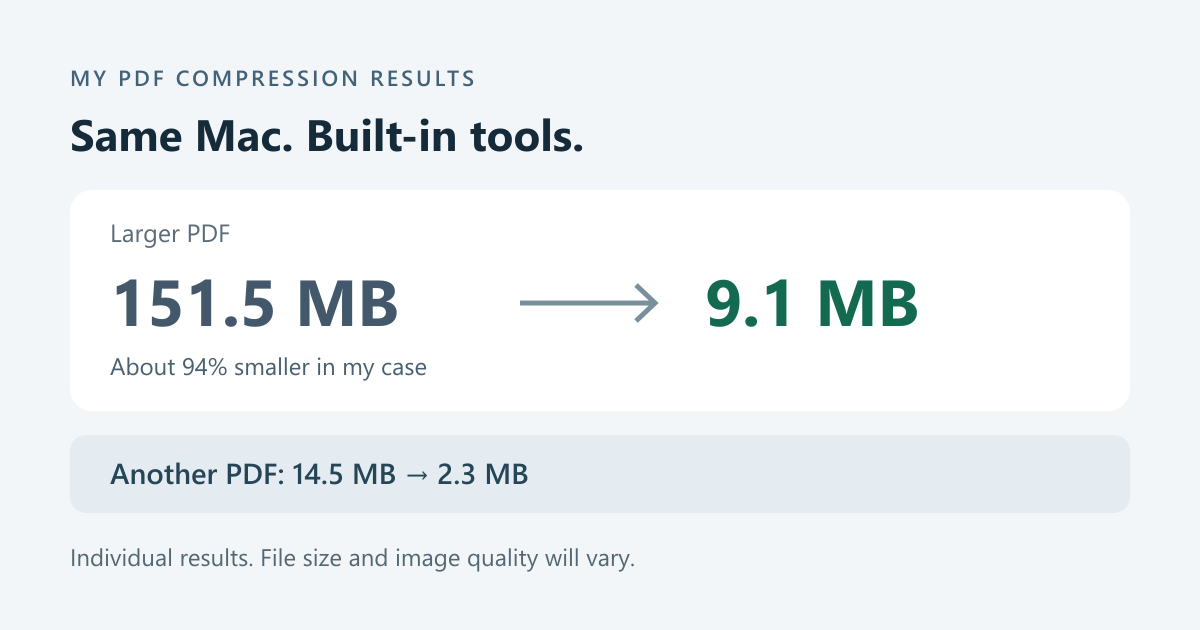
I recently needed to email a batch of PDF files. One of them was 151.5 MB. I wanted it below 25 MB, and I wanted to keep it as one PDF rather than split it into separate pages.
My first attempt was the obvious one: open it in Preview and use Reduce File Size. That got it down to somewhere in the 40 MB range. Better, but still too large. I tried the same thing again, and the file actually got bigger.
The tool that helped was already on my Mac: ColorSync Utility. It lets you make a custom version of the PDF compression filter. After working through that, the final file I saw was 9.1 MB, about 94% smaller than the original. Another PDF went from 14.5 MB to 2.3 MB.

Those are the sizes of my files, not a result I can promise for every PDF. I also do not have a verified record of every setting used for the final 9.1 MB version. The settings below are a starting point to try, not a recipe that guarantees the same result.
The two built-in tools you need
Both Preview and ColorSync Utility come with macOS. There is nothing to install or pay for, and this workflow does not require uploading the PDF to an online compression service.
Preview handles the export. ColorSync Utility lets you adjust the filter used for that export. The detail I initially missed was that the built-in filter is locked: you need to copy it before you can change it.

1. Open ColorSync Utility
Press Command + Space, type ColorSync Utility, and open the app. You can also find it in Applications → Utilities.
2. Find the Reduce File Size filter
Click Filters in the toolbar, then find Reduce File Size. Expand the filter using the arrow beside its name. Inside it, look for Image Sampling and Image Compression.
The labels and controls can look a little different depending on your macOS version and language. The important thing is to find the filter and its two image settings.
3. If everything is greyed out, duplicate the filter
This was the part that stopped me. I expanded Image Sampling, but all the settings were grey and I could not edit them.
The original system filter is locked. Look on the right side of the filter row for the Duplicate button: two overlapping document outlines, just to the left of the padlock. Apple confirms this in its ColorSync Utility guide.
 Duplicate
Click this first
 Locked
Original cannot be edited
- Click the Duplicate button beside Reduce File Size.
- Select the new copy. Depending on the version, its name may start as Reduce File Size Copy.
- Rename it to something recognizable, such as My PDF Compression.
- Expand the copy and edit its settings. Leave the original system filter alone.
Some older versions put Duplicate Filter inside the menu on the right of the filter name. The idea is the same: edit a copy, not the locked original.
4. Adjust image sampling and compression
For a first attempt, these are reasonable settings to experiment with:
| Setting | Starting point to try |
|---|---|
| Image Sampling → Quality | High |
| Image Sampling → Set Resolution | 144 Pixels/Inch |
| Image Compression → Mode / Compression | JPEG |
| Image Compression → Quality | Start toward High; try Medium if needed |
If there are checkboxes beside the settings, enable the resolution setting you intend to use. Also check any inherited scale or pixel-size limits: those can affect the result too. Adjust them for your document rather than assuming the resolution field is the only control that matters.

144 dpi will not suit every PDF. If the file has small text, fine lines, stamps, or QR codes, try a higher resolution if needed. JPEG compression can also introduce visible artifacts. The goal is a smaller file that is still readable, not the smallest possible number.
5. Export from Preview using your new filter
- Open the original PDF in Preview.
- Choose File → Export. Use Export, rather than a different PDF-saving command.
- Make sure the format is PDF.
- Open the Quartz Filter menu and choose My PDF Compression, or whatever you named the filter.
- Save under a new filename, such as document-compressed.pdf. Keep the original.
- Check the new file size in Finder.
Apple documents the File → Export → Quartz Filter route in Preview. Your custom filter gives you a way to adjust the image settings instead of repeatedly using the default preset.
If it is still too large, adjust the JPEG quality or sampling resolution and export again from the original. Repeatedly compressing an already compressed copy can make image quality worse without reliably making the file smaller.
What if the new filter does not appear in Preview?
Try closing and reopening Preview after creating the filter. If it still does not appear, you can apply the filter in ColorSync Utility itself: make a separate copy of the PDF first, open that copy with File → Open, select your filter in the menu at the bottom of the document window, inspect the preview, then click Apply. Apple describes this alternative workflow here.
6. Open the result and check every page
Before sending the file, open the compressed version and go through it page by page. Check that:
- Text and small numbers are still readable when you zoom in.
- Images, fine details, and any QR codes remain clear enough for their intended use.
- All pages are present and in the right order.
- The file opens normally and still contains everything you need.
A smaller file is not useful if the person receiving it cannot read it. There can be a trade-off between file size and image quality, and there is no fixed setting that avoids that trade-off for every document.
Why did Preview make my PDF bigger?
I cannot identify the exact cause for my file. Rewriting a PDF can change image encoding and other internal data, and a file may already contain compressed images. A command called Reduce File Size is not a promise that each new export will be smaller.
My practical takeaway is to compare the output with the original, keep whichever version works better, and try a custom filter if the default one is not helping. Repeating the same export over and over did not solve it for me.
Why I kept the compression local
I did not need an online PDF compressor for this. Preview and ColorSync Utility process the document on the Mac, so the compression step does not require sending it to a third-party website. For my own files, that is a useful reason to try the built-in tools first.
Under 25 MB, but the email still says it is too large?
There was one more surprise. Five PDFs showed a combined size of about 23 MB in Finder, but the mail client reported attachments of more than 31 MB.
One important explanation is email encoding. Binary attachments are commonly Base64-encoded for transport, which adds roughly one third to their size. Microsoft explains the approximately 33% increase and its effect on email size limits.
For a rough calculation, 23 MB × 4 ÷ 3 ≈ 30.7 MB, before line wrapping, the message body, and other email overhead. That is consistent with the larger figure I saw, although I did not inspect the raw message to measure each part.
So a PDF below 25 MB does not necessarily make the whole email smaller than 25 MB. Providers can also define and enforce their limits differently. Go by the actual sending and receiving limits; if a batch is too large, sending the PDFs across multiple emails may be better than sacrificing more clarity. Each PDF can still stay in one piece.
What worked for me
The useful discovery was not a magic compression number. It was that macOS already had a tool for editing the filter, and that the greyed-out settings became editable once I made a copy.
For my large PDF, the final result was 9.1 MB instead of 151.5 MB. I got to keep it as a single file, did not install anything, and did not need an online compression site. If Preview is making your PDF bigger, ColorSync Utility is worth trying.
References and image credits
- Apple: Add or modify Quartz filters in ColorSync Utility — locked filters, duplication, and editable components.
- Apple: Reduce the size of a PDF in Preview — export steps and the quality trade-off.
- Apple: Modify PDF files with Quartz filters — applying a filter inside ColorSync Utility.
- Microsoft: Email attachments and Base64 size overhead.
- The historical interface screenshot is by Daniel Beck on Super User, shared under CC BY-SA 3.0. It is reproduced without modification. The button images come from Apple’s guide; the results and workflow diagrams were made for this article.
Leave a Reply